Install Ubuntu using WSL2
Now that we have enabled Virtualization, we can install Ubuntu using the WSL feature.
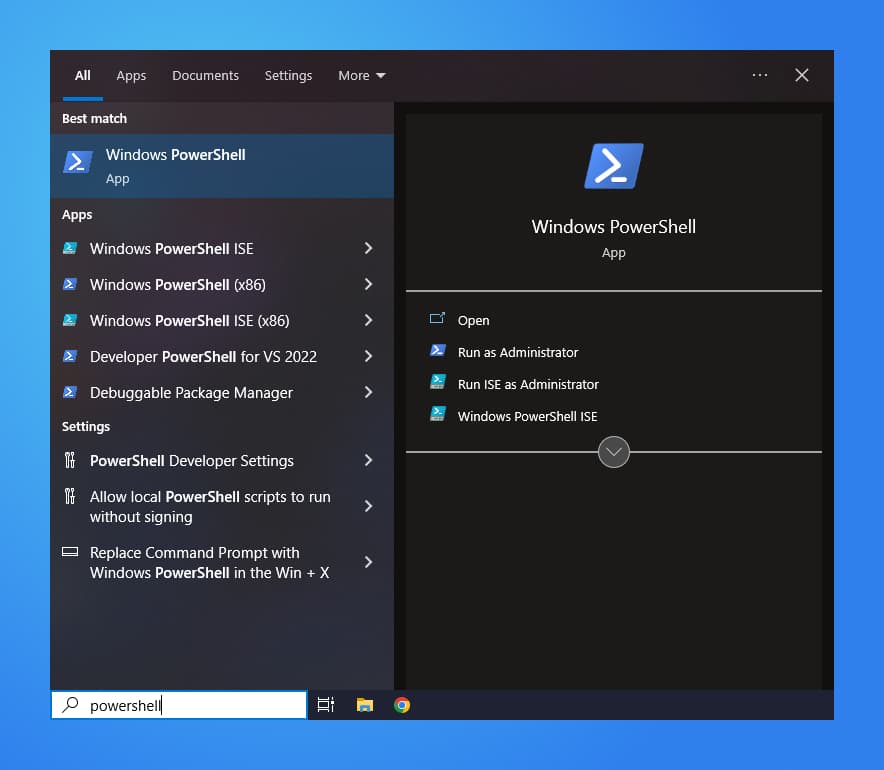
Step 1: Launch Powershell
We'll use Windows Powershell to setup WSL. Open the Windows Menu, type
powershell and open the application.
Step 2: Install WSL & Ubuntu
Within Powershell, we will now install the Ubuntu Operating System with WSL. You will be prompted for Administrator permissions during this process, please press Yes to these prompts.
wsl --install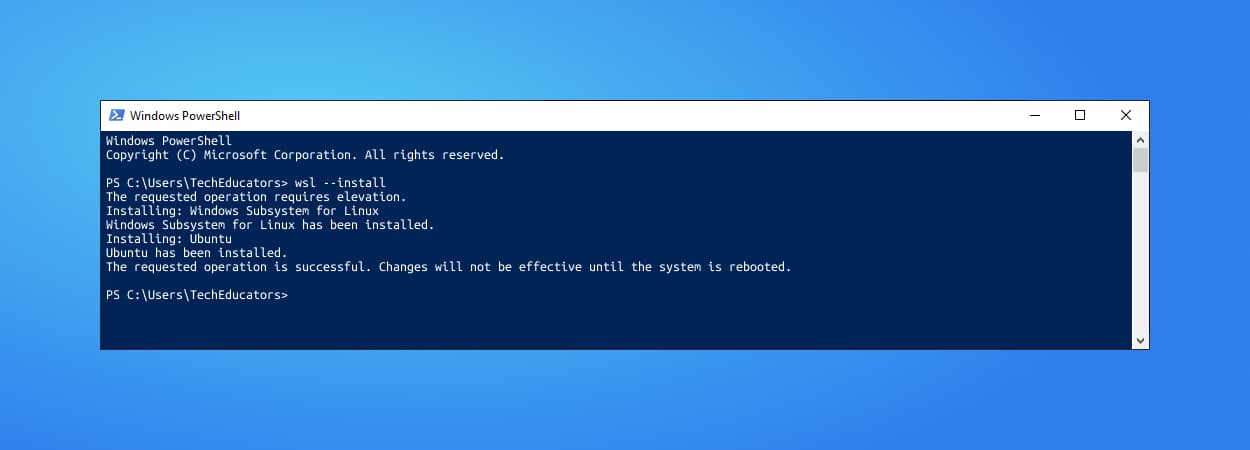
Once this has completed, be sure to restart your computer!
Step 3: Install Ubuntu (continued)
Now, we'll repeat the last two steps to finalise the installation. Open the
Menu, once again type powershell, open the Application and in the window
that appears type:
wsl --installYou will be prompted for a Username & Password during the setup. These will be your credentials for the Ubuntu installation, and is seperate to your Windows username and password. We recommend keeping this simple.
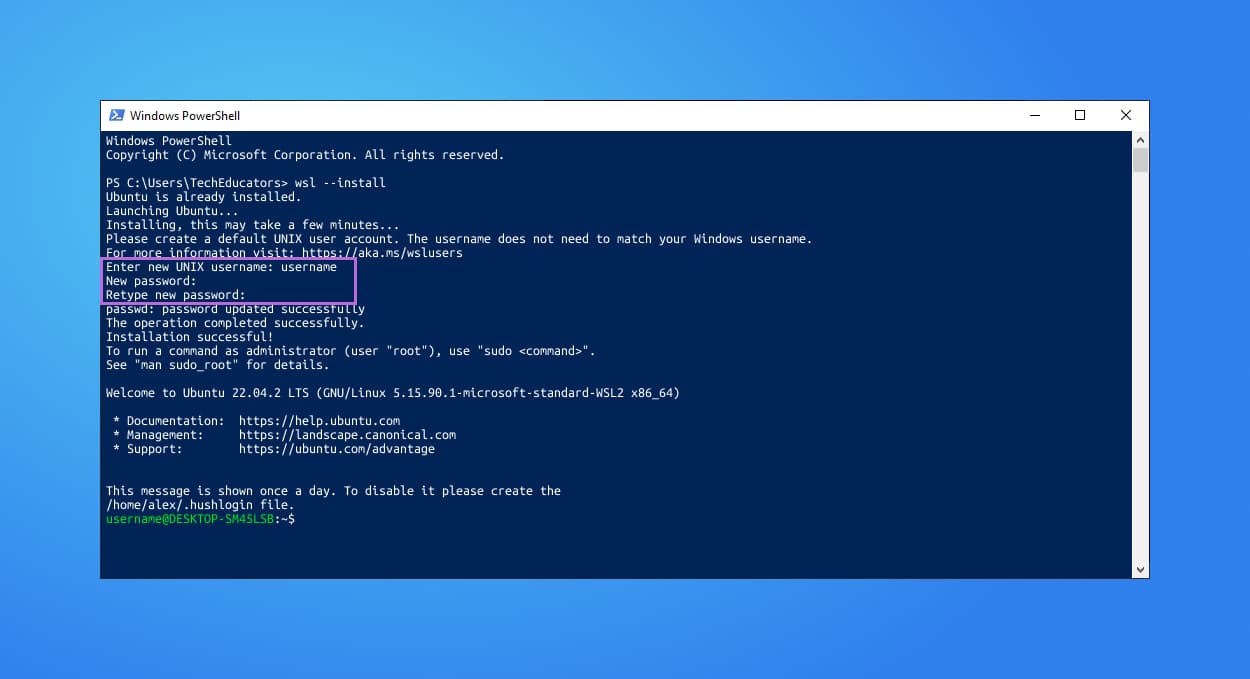
Password prompts will often be left blank as you type and will not
display xxx, or *** in it's place.
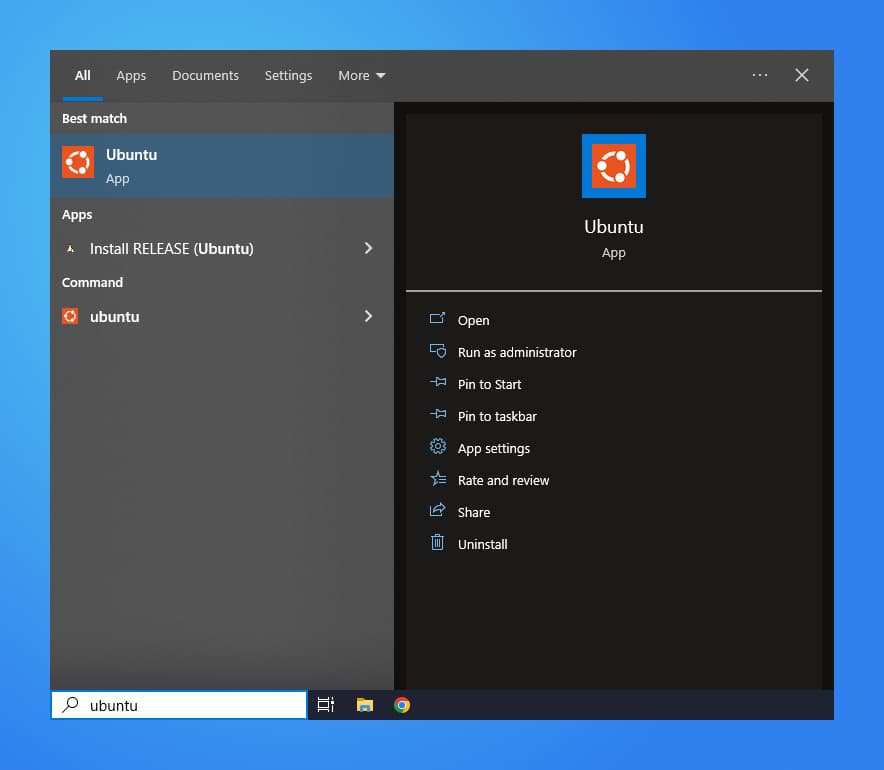
Step 3: Launch Ubuntu
Open the Windows Menu, and type "Ubuntu". You should see a new Application as pictured below. Launch the Application, and proceed to follow our Ubuntu Setup Guide.