Configure Git, and connect to a VCS provider
Throughout the course we will be using Git (opens in a new tab) to keep track of our work and publishing it to a VCS provider. During the course we will use Github - a free VCS provider owned by Microsoft. Don't worry, we'll give you an introduction into how to use it and will concentrate on getting setup and configured today.
Git comes preinstalled on Ubuntu, so you won't need to install it. So let's get it configured.
Register for GitHub
First, we'll need to register an account with Github - https://github.com/signup (opens in a new tab).
Configure Git locally
Now open your Terminal, or on Windows the Ubuntu App, and type the following (make sure to complete your details where required):
git config --global user.name 'YOUR FULL NAME'git config --global user.email 'YOUR EMAIL ADDRESS'Make sure 'YOUR EMAIL ADDRESS' in the command above matches the one you're
using with GitHub.
git config --global init.defaultBranch mainGenerate your SSH keys
Now, we'll create credentials for your git client and provide these to GitHub. We'll generate a pair of "SSH Keys (opens in a new tab)" We refer to one as your public key, and the other as your private key.
First, let's generate your new keys; at your terminal please type:
ssh-keygenYou will be asked for a file name, unless you already have keys you can ignore and just tap enter to every option.
You will be asked for a passphrase, we recommend leaving this empty and instead ensure you keep the private key safe.
You should see a similar output in your terminal as below:
Generating public/private rsa key pair.
Enter file in which to save the key (/home/username/.ssh/id_rsa):
Enter passphrase (empty for no passphrase):
Enter same passphrase again:
Your identification has been saved in /home/username/.ssh/id_rsa
Your public key has been saved in /home/username/.ssh/id_rsa.pub
The key fingerprint is:
SHA256:sk4MR4/BBLy2cXd0fSKqQdjqSfkVkQjz+NLSXyE+sy0 username@Computer-Host-Name
The key's randomart image is:
+---[RSA 3072]----+
|   ...++ ..o .   |
|    .o.++ + o o .|
|     .=+...+.. o |
|    +.=Bo.+. .   |
|   ..**+S=+ .    |
|    .+o=o. *     |
|      +   E .    |
|     o     .     |
|      .          |
+----[SHA256]-----+
This has created a public and private key in the /home/username/.ssh
directory. The private key is called id_rsa (or id_ed25519) & the public key is called id_rsa.pub (or id_ed25519.pub). Keep the private key safe. We can now share our public key with GitHub or another provider. First let's
print out it's contents:
If your ssh-keygen generated the file "id_rsa.pub" :
cat ~/.ssh/id_rsa.pubIf your ssh-keygen generated the file "id_ed25519.pub" :
cat ~/.ssh/id_ed25519.pubYou should see a similar output in your terminal as below:
ssh-rsa AAAAB3NzaC1yc2EAAAADAQABAAABgQDG2TqKwLLO2B+pp5cZgiKzll8pARuGX/8YH43R4vueMcyFVJiCXs009rioPw69g0D1GTwprFkkyDTRX2PfiKYAUlfPHB12klOIVoISFc/1Y4JqsoghM/91P4SEuXz3q2YvFHBp0gHPUvkv8/WTgOT1XGHMNyFgC2E6SJdiJnsHWf7QK6b5ifDHTgd1wEnLifLlqIQKX3ImQOHZH2pKly37zkB6g8gLBhgPUuhM9x9LeHHx0RR0RkI96kHX9LEcgZz/DyV3/3WxjEb31egjQ/jAQ4RnJL3ftbS4kVYggQxFkpO6WH4OgzPXpwOMqSPwqocx4VCHnGiHzis9LmCSViR9tkxdM7aDhpHlqRb68MVpiIZLjxio1lTcovmqoZW+wjky5bb8Je4DH2eQYgWRLOU0giloFeAQB06TwuIIPM8J3HlTtk7Vm8Jm4imQG8RSnyraKsFULYTtXTwfmw9VjABp+HNlTJJl29S7DdJa9v3qvOHYwrPOf82ykxAF2HdOpNc= username@Computer-Host-Nameor
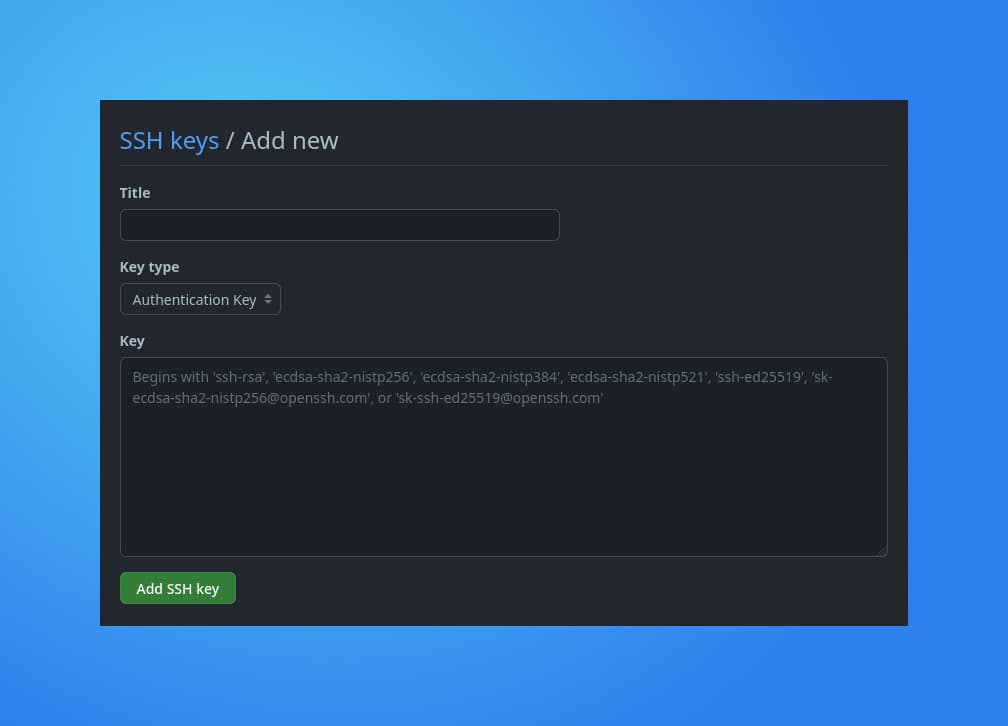
ssh-ed25519 AAAAB3NzaC1yc2EAAAADAQABAAABgQDG2TqKwLLO2B+pp5cZgiKzll8pARuGX/8YH43R4vueMcyFVJiCXs009rioPw69g0D1GTwprFkkyDTRX2PfiKYAUlfPHB12klOIVoISFc/1Y4JqsoghM/91P4SEuXz3q2YvFHBp0gHPUvkv8/WTgOT1XGHMNyFgC2E6SJdiJnsHWf7QK6b5ifDHTgd1wEnLifLlqIQKX3ImQOHZH2pKly37zkB6g8gLBhgPUuhM9x9LeHHx0RR0RkI96kHX9LEcgZz/DyV3/3WxjEb31egjQ/jAQ4RnJL3ftbS4kVYggQxFkpO6WH4OgzPXpwOMqSPwqocx4VCHnGiHzis9LmCSViR9tkxdM7aDhpHlqRb68MVpiIZLjxio1lTcovmqoZW+wjky5bb8Je4DH2eQYgWRLOU0giloFeAQB06TwuIIPM8J3HlTtk7Vm8Jm4imQG8RSnyraKsFULYTtXTwfmw9VjABp+HNlTJJl29S7DdJa9v3qvOHYwrPOf82ykxAF2HdOpNc= username@Computer-Host-NameCopy this output and add it to your GitHub SSH Keys, Settings > SSH and GPG keys > New SSH key (opens in a new tab) The key's title is for your own benefit, allowing you to easily identify different keys; we recommend naming it after your computer and generating new keys on each device you use:
Confirm it's setup
Now, we can confirm this has worked by asking GitHub who it thinks you are:
ssh git@github.comYou will be asked to confirm the authenticity, simply type yes, and you should see a message confirming "You've successfully authenticated":
The authenticity of host 'github.com (140.82.121.3)' can't be established.
ED25519 key fingerprint is SHA256:+DiY3wvvV6TuJJhbpZisF/zLDA0zPMSvHdkr4UvCOqU.
This key is not known by any other names.
Are you sure you want to continue connecting (yes/no/[fingerprint])? yes
Warning: Permanently added 'github.com' (ED25519) to the list of known hosts.
PTY allocation request failed on channel 0
Hi TechEducatorsTeam! You've successfully authenticated, but GitHub does not provide shell access.
Connection to github.com closed.Your computer is now setup and ready to start commit'ing.