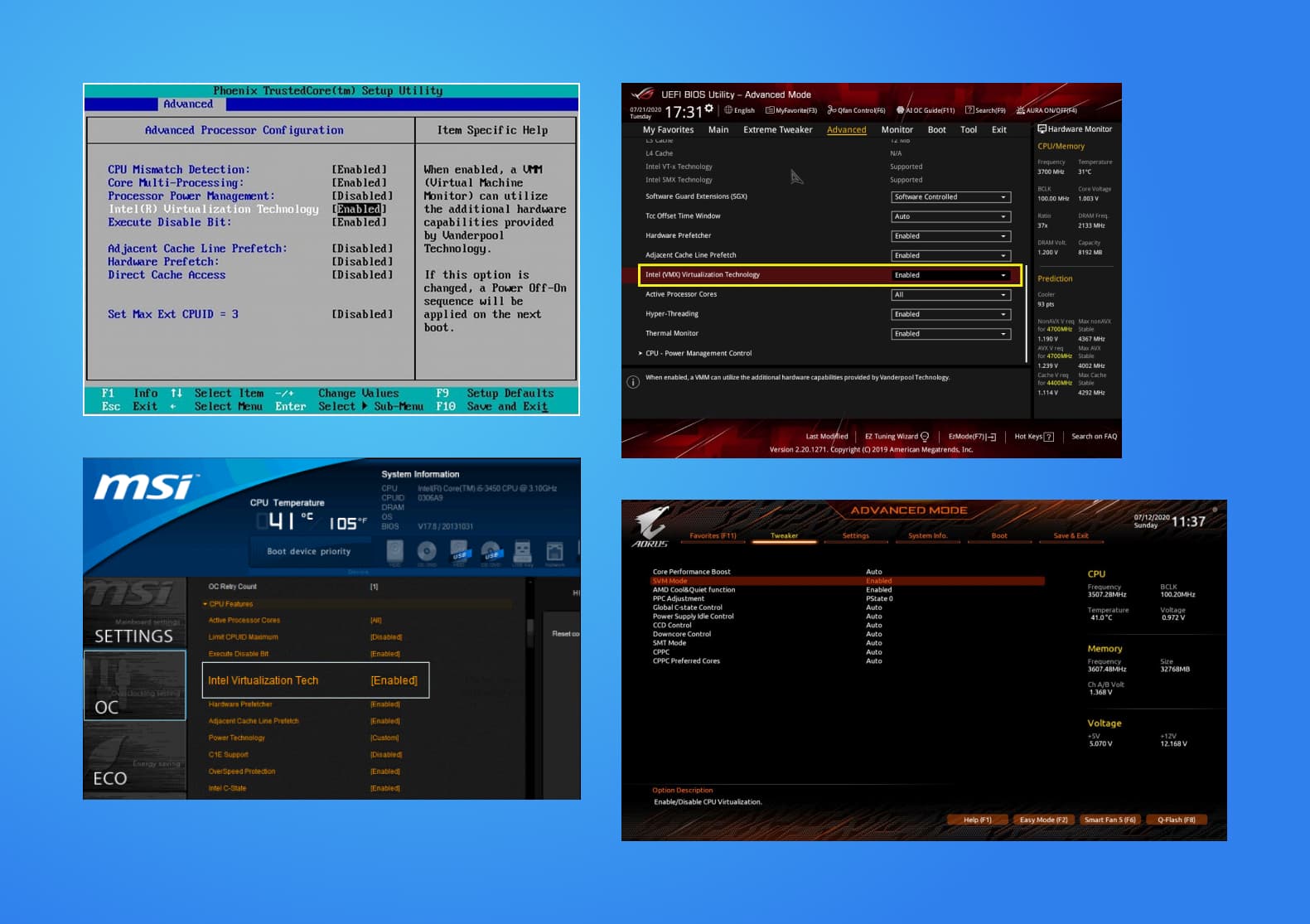
Setup Hardware Virtualization
A fairly complicated initial step is to ensure your hardware is configured and that Hardware Virtualization (opens in a new tab) is enabled so that you can run another operating system on your Windows PC.
This will allow you to run Ubuntu on your Windows Desktop Environment.
Step 1: Check it's current status
If Virtualization is enabled, you can skip the rest of this document and Install Ubuntu
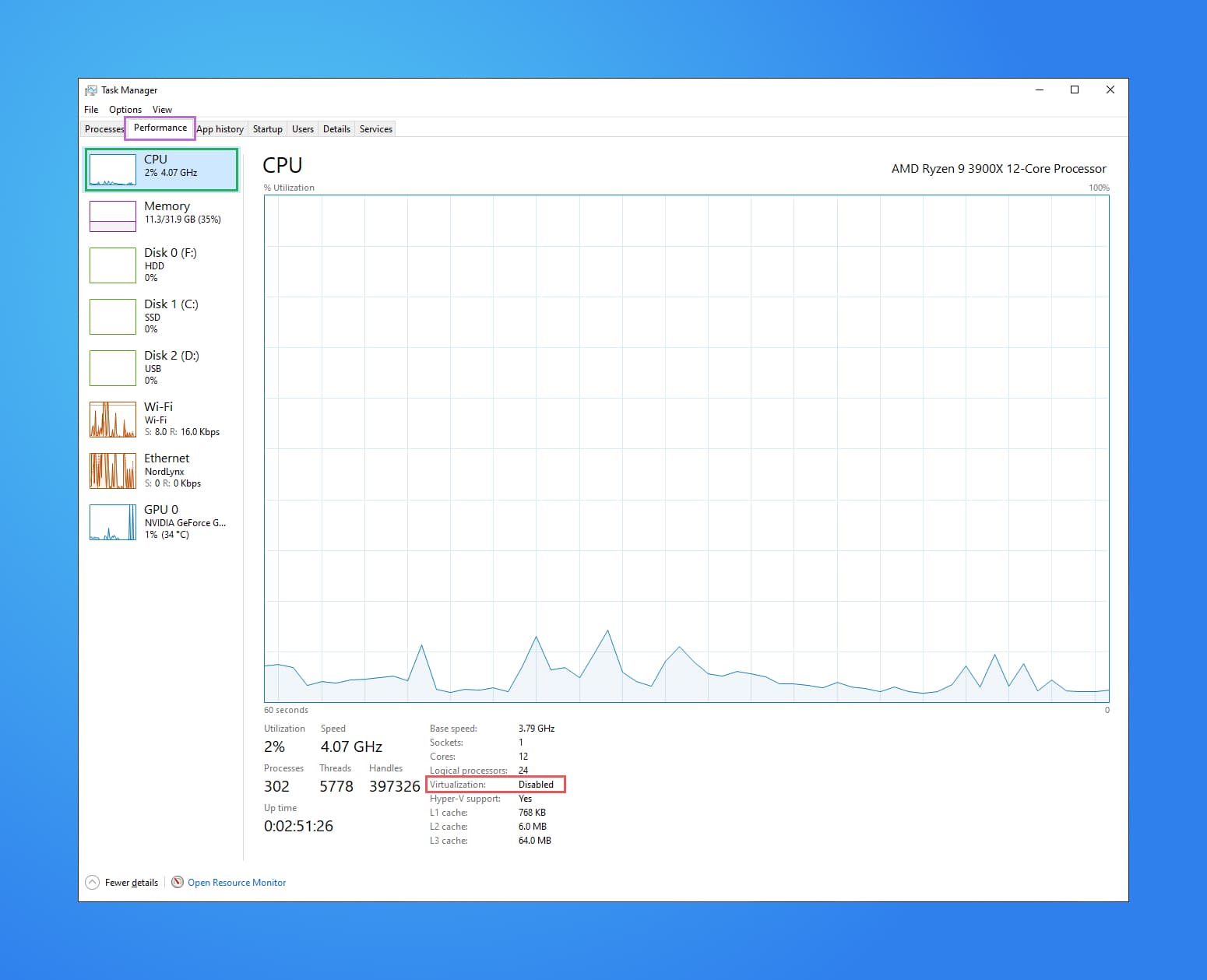
We can check whether Virtualization has been enabled by opening the
"Task Manager", you can open this tool by pressing Ctrl + Shift + Esc.
Selecting the "Performance" Tab at the top, you should be presented with some beautiful charts detailing your computer's current load. Click "CPU" on the left, and look for the information about "Virtualization" at the bottom of the window.
Step 2: Restart into Recovery Mode
We will need to configure your PC hardware to enable Windows to Virtualize. We will do this in BIOS/UEFI.
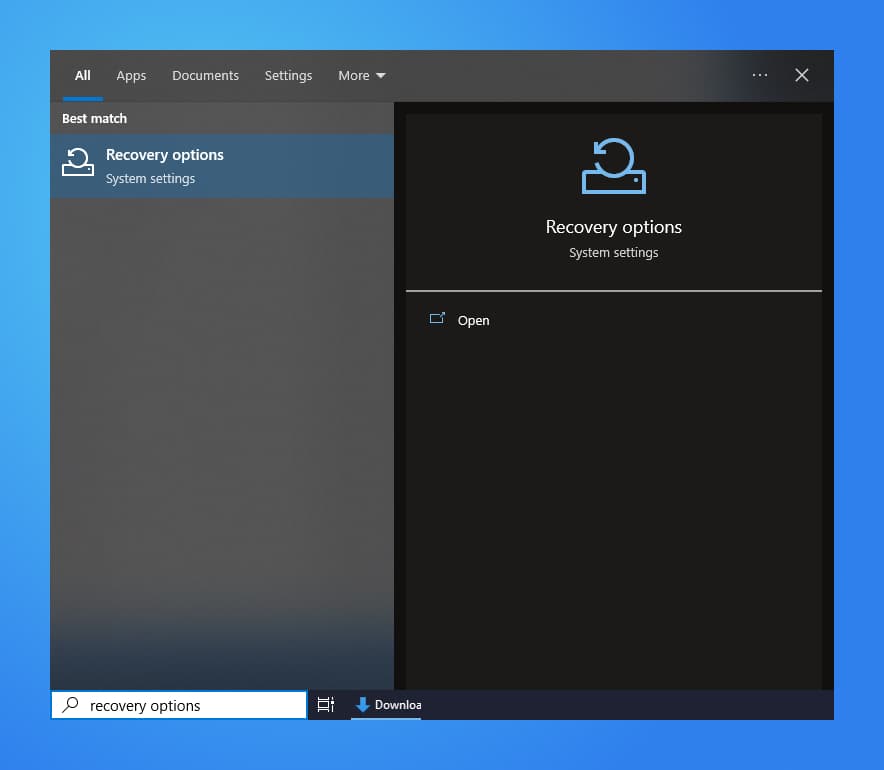
Let's launch Windows into Recovery Mode. Open the Windows Menu, type "Recovery Options" and open the application:
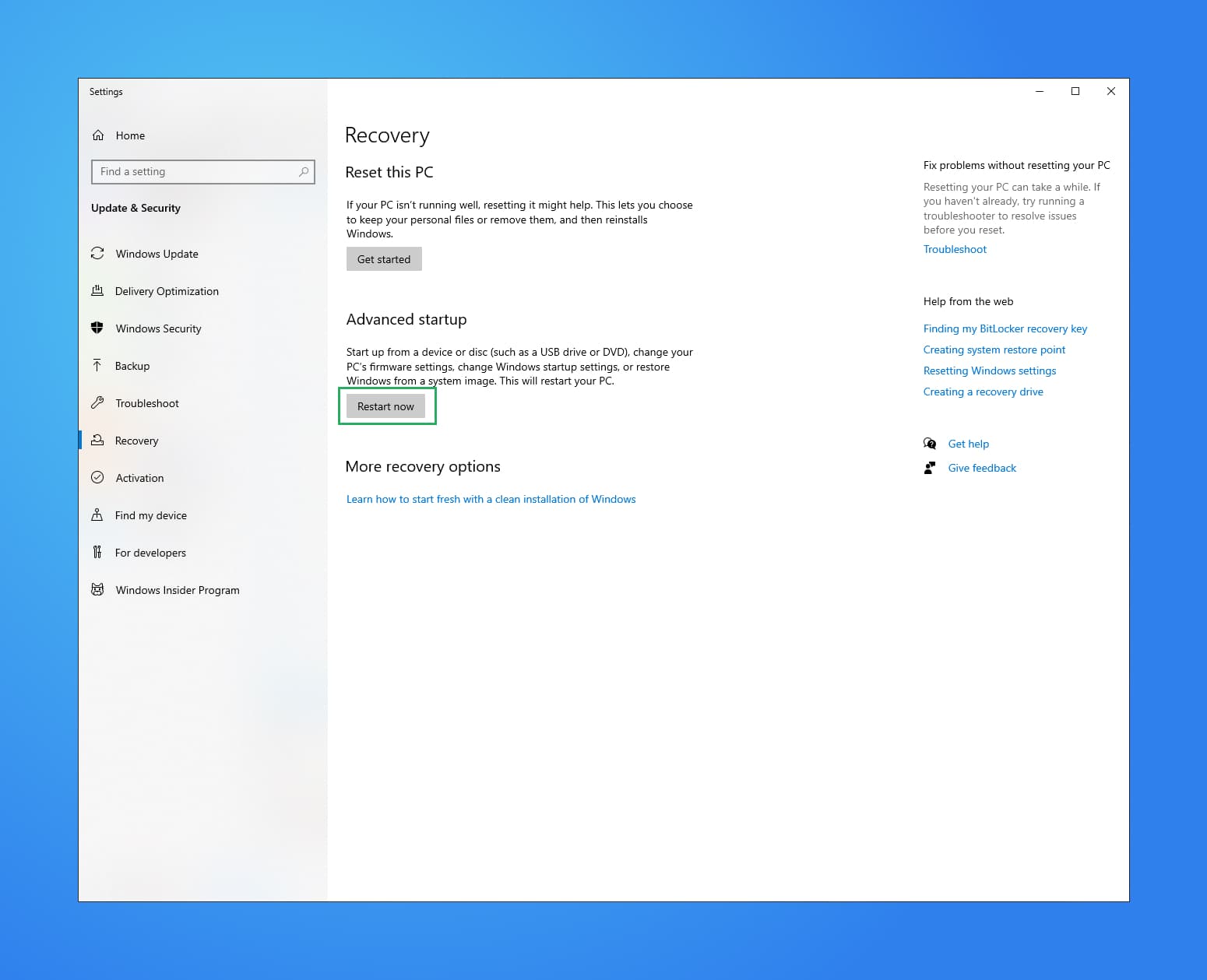
Once the settings window appears click the Restart Now button.
Step 3: Restart into UEFI
Your PC/Laptop will restart and show the following menu. Using your arrow keys to navigate and the enter key to make a selection follow these steps:
- Select Troubleshoot
- Select Advanced Options
- Select UEFI Firmware Settings
or watch the video below:
Step 4: Enable CPU Virtualization
Once your computer has restarted you will enter into BIOS/UEFI.
This is the most complicated step of the entire guide. Unfortunately, this
option is different with every manufacturer. It will be found under an
option for CPU Configuration; on Intel CPUs this feature is often referred to
as Intel Virtualization Technology, Intel VT; whereas for AMD CPUs this
feature is referred to as AMD-V, or SVM Mode.
We recommend Googling the process for your hardware Enable CPU Virtualization in bios on a <YOUR DEVICE> (opens in a new tab), for example "enable CPU Virtualization in bios on a Lenovo Laptop" or please reach out to a member of our team and we'll give you a helping hand and further instructions.